Use the Map Features
The map widget offers most of the standard Google Map® features, with additional functionality as described below.
The map widget shows the location for all assets currently displayed in the Asset Inventory list (2), but when an individual asset is selected, the map details are automatically updated to focus on that asset.
Common Control Elements on the Map
In the top left of the map two options are available for the representation of the map. The Map view shows a flat view of the map. On this view, roads, highways, railroads, water bodies, and road names are shown. You can see the terrain details by hovering over the Map and clicking in the Terrain check box.
The satellite view shows the map as seen from a satellite, using photos from above to represent the map. On this view road names are still shown, and roads are faintly highlighted. You can disable all labels by hovering over the Satellite and clearing the Labels check box.
On the right side of the map are options to toggle full screen view, zoom to center, create a geofence, and a + and – to zoom in and out. Move the slider for each item to the right to have the item display on the map.
The show layers option, if selected, displays the following on the map: geofences, assets, traffic, gas stations, and user defined items.
In the bottom left of the map is the Google® logo. Click the logo to open a new window pinpointed on the location that you are currently viewing.
In the bottom right of the map, click the map scale to toggle between feet and meters.
General Mouse Related Map Controls
You can move the map around by clicking anywhere on the map, holding the mouse button down, and then dragging the mouse around. You can drop the map again by releasing the mouse button.
If your mouse has a scroll wheel, you can zoom in and out of the map. The map zooms in to and out of the map by using the cursor as a center point, keeping that area focused.
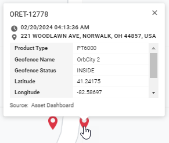
Click on a pinpoint, for more information about the items.
General Keyboard Related Map Controls
You can move the map around by using the arrow keys on your keyboard. By holding the button down, the map moves around faster until the button is released. To move in the cardinal directions, hold one arrow key at a time, or in the intermediate directions hold two adjacent arrow keys. The Home, End, Page Up and Page Down keys can also be used to quickly travel Left, Right, Up or Down on the map respectively.
Use the = and insert keys on your keyboard to zoom in and out of the map. The absolute center of the map is the center point when zooming in. If your keyboard has a numeric pad (number pad), you can also zoom in and out by using the + and - keys on the number pad.
View Finder Resolution
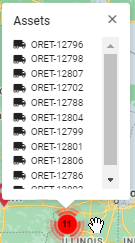
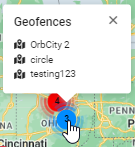
Depending on the zoom resolution of the map, if more than one asset is clustered within the same geographical area, the total number of assets in the area appear on the map within a red circle. In the example below, there are a total of 11 assets in the area of the red circle. Geofences clustered in the same area appear within a blue circle. In the example below there are three geofences cluster in close proximity.
Click or hover over a circle to see which assets or geofences are in that area.
-
Use the zoom feature to zoom in for finer resolution. The more you zoom, the more detail you see. As you zoom for finer resolution, you get to the point where you can see icons that represent the individual assets /geofences.
-
Click the icon to see specific details.